---
description: Header Nav - Hamburger Slide-In
---
# Home 28 - Single Product
{% embed url="https://www.youtube.com/watch?v=9xjykbhDEkc" %}
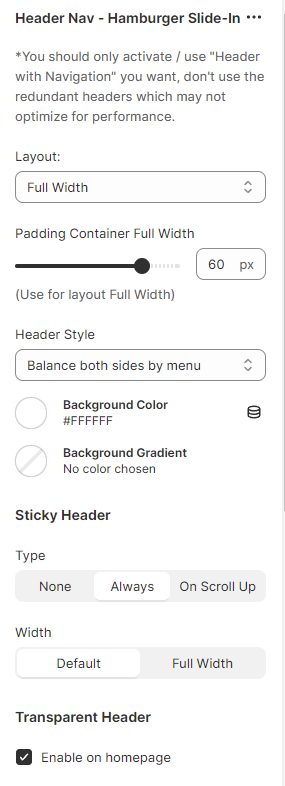
To setup Header Home 28 - Single Product, you need to add the **Header Nav - Hamburger Slide-In** section to the **HEADER GROUP**.
1. From your Shopify admin, go to **Online Store** **->** **Themes**.
2. Find the theme that you want to edit, and then click **Customize**.
3. At the **HEADER GROUP ->** click **+** **Add section**.
4. Search and select **Header Nav - Hamburger Slide-In** section.
## Set up a scroll to row anchor (single page menu) on your site
1. From your Shopify admin, go to **Online Store** **->** **Navigation**.
2. Find the menu that you want to edit.
3. Select Menu Item and enter the Section ID name.
For example: #features
4. Find the theme that you want to edit, and then click **Customize**.
5. Select Section and enter an ID name that matches the ID name you just entered for the Menu Item.
For example: features
Note: If you include a link after #ID, clicking on the Menu will take you to the page where you attached the link and automatically scroll down to the corresponding section if one exists.
## Upload Settings For Header
To set up data for Header Home 28 - Single Product, please follow below instruction:
1. Click the [file to download](https://halosoft.gitbook.io/ella-documentation/footer/footer-layout/home-27-men-fashion-02#preset-for-header-home-27-men-fashion-02) the corresponding _"json"_ of the layout you want to open the data on a new tab.
2. **SELECT ALL** and **COPY**.
3. From your Shopify admin, go to **Themes** **->** **Actions** **->** **Edit Code.**
4. Find folder **Sections** **->** Open file **header-group.json** **->** **SELECT ALL** and **DELETE** then **PASTE** the copied preset from the external file.
## Preset for **Header** Home 28 - Single Product